
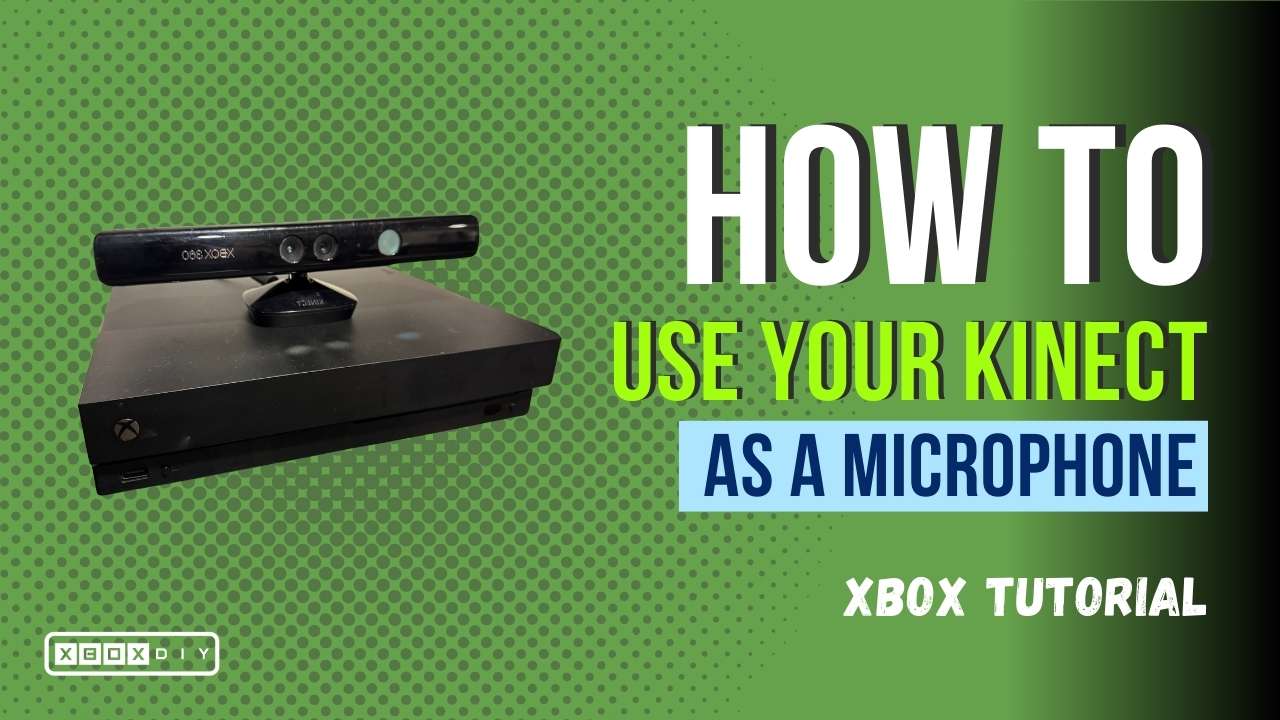
The Xbox Kinect may be best known for its motion-sensing capabilities, but did you know it can also function as a microphone for your Xbox console? Yes, that’s right. You can still use your Xbox Kinect – even in 2025!
Whether you’ve run out of controllers with built-in mics, damaged one of your headsets, or just want a hands-free audio option, using the Kinect as a replacement or backup headset is an easy and convenient solution. In this guide, we’ll show you how to set up your Kinect as a microphone, discuss its limitations, and offer tips for getting the best audio quality possible.
Setting Up Kinect as a Microphone
Getting your Kinect to work as a microphone is fairly straightforward, but ensuring optimal setup can make a big difference in audio performance. I’ve tested various different approaches to this and listed the best way to connect and use the Kinect below. Follow these steps to get started, and let me know if there is a better way to do something in the comments below
Step 1: Connect Your Kinect
The first thing you need to do is ensure that your Kinect is properly connected to your Xbox console. The setup process varies slightly depending on your Xbox model:
- For Xbox One: Plug the Kinect directly into the designated Kinect port on the back of the console.
- For Xbox One S or Xbox One X: Since these models do not have a dedicated Kinect port, you will need a Kinect adapter. Microsoft discontinued the official adapter in 2018, but third-party versions are available online. Be sure to check reviews before purchasing to ensure compatibility.
Did you know? The Kinect features an array of microphones that allow it to detect voice commands even in noisy environments. This design helps with accurate voice recognition but may also lead to more background noise being picked up in chat.
Step 2: Adjust Audio Settings
Once your Kinect is connected, adjusting the audio settings is crucial for optimal performance. Here’s how you can fine-tune your Xbox settings:
- Power on your Xbox and go to Settings.
- Navigate to Devices & connections.
- Select Kinect and ensure it is enabled.
- Go to Volume & audio output under General.
- Set Party chat output to “Headset and speakers” to ensure your Kinect can be used for chat.
- Enable Kinect mic for chat if the option is available.
Pro Tip: If your voice sounds distant or unclear, try repositioning your Kinect slightly closer to your usual sitting area. The microphone works best when it is unobstructed and facing toward you.
Step 3: Test Your Microphone
Before jumping into a game or party chat, testing your microphone ensures that everything is functioning correctly. Here’s how you can check the audio:
- Open Party Chat or use an Xbox voice command like “Hey Cortana” (for older systems).
- Speak at a normal volume and listen for feedback from friends.
- If your voice is too quiet or cutting out, recalibrate your Kinect in the settings menu.
Limitations of Using Kinect as a Microphone
While the Kinect can be a convenient microphone option, it does have some limitations. Understanding these constraints can help you decide if it’s the right choice for your setup.
- Audio Quality: The Kinect was designed primarily for voice commands, not professional recording or high-fidelity communication. Expect a basic microphone experience that may pick up background noise.
- Background Noise Sensitivity: The Kinect’s microphone array is highly sensitive, meaning it can pick up sounds from multiple sources in the room. This may be an issue if you game in a noisy environment.
- Placement Restrictions: Since the Kinect is typically positioned for motion sensing, it may not be in the ideal location for clear voice capture.
- Compatibility: The Kinect is no longer supported on Xbox Series X|S, meaning this solution is limited to Xbox One consoles.
Alternative Use Case: If you’re into streaming, the Kinect can still function as a webcam on Windows 10 using the Kinect SDK. However, its audio quality is generally inferior to standalone USB microphones.
Tips for Better Audio Quality
If you’re relying on the Kinect as your primary microphone, you’ll want to optimize its performance as much as possible. Here are a few tips to enhance your voice clarity:
- Minimize Background Noise: Turn off TVs, fans, or other sources of background sound to improve clarity.
- Maintain an Optimal Distance: Sit within 6-8 feet of the Kinect for the best audio pickup. Sitting too far can make your voice sound muffled.
- Regular Calibration: Use the Kinect Tuner in Settings to recalibrate the sensor periodically. This helps with both voice commands and microphone sensitivity.
- Use Voice Commands Thoughtfully: If you’re relying on the Kinect for both microphone input and commands, practice speaking clearly to avoid unintended actions.
- Avoid Echo Issues: If other players report an echo, try lowering your TV volume or using a headset to reduce audio feedback.
Alternatives to Kinect as a Microphone
If you find that the Kinect does not meet your needs as a microphone, there are several alternative options that provide better sound quality and flexibility for gaming and communication.
- Gaming Headset: A dedicated headset provides superior audio quality and noise isolation. Many Xbox-compatible headsets offer built-in microphones that reduce background noise. Check out XboxDIY’s Amazon Storefront for some of the best gaming headsets for Xbox consoles.
- Dedicated USB Microphone: If you’re streaming or recording content, a standalone microphone such as the Blue Yeti or HyperX Quadcast will offer vastly superior sound quality. Some USB microphones work with Xbox when used through a compatible setup.
- Mobile App as a Mic: The Xbox App on iOS and Android allows you to use your phone as a microphone in party chat. This can be a convenient alternative if you don’t have a headset or Kinect available.
Budget-Friendly Alternative: If you don’t want to invest in a new headset or microphone, consider a cheap wired headset with a built-in mic. Many budget-friendly options provide solid audio for party chat without breaking the bank.
Conclusion – The Kinect Works as a Mic
Using your Xbox Kinect as a microphone is a convenient option if you need a quick, hands-free solution. While it may not match the quality of dedicated microphones, it’s more than capable for casual gaming and party chats. However, its limitations in audio quality, background noise sensitivity, and placement constraints make it less ideal for serious gaming or content creation.
If you’re looking for a more permanent setup, investing in a quality headset or external microphone is recommended. Whether you’re gaming, streaming, or chatting with friends, having a reliable microphone can make a significant difference in communication clarity.
For more Xbox DIY tips and tricks, be sure to check out XboxDIY.com!


0 Comments